
When you upload a non-alcohol invoice (Premium or Premium Plus plan required) Fintech verifies retailer and product information before payment can be scheduled. Fintech Review typically takes 12 to 24 hours.
By disabling this feature, uploaded invoices will skip Fintech Review and process within minutes, letting you approve invoices and schedule payments at a much faster rate. Fintech Review can be adjusted per vendor or per invoice.
⚠️ Turning off Fintech Review increases the risk of approving and paying uploaded invoices with missing or incorrect information. It is recommended this is only done with trusted vendors or for time-sensitive invoices that you can manually review.
⚠️ Fintech Review can be adjusted for a vendor at any time. However, it can only be turned off for an individual invoice with a Processing status. Once turned off, it cannot be turned back on for that invoice.
Managing Fintech Review
Fintech Review by Vendor
⚠️ At least one invoice must have been processed for the selected vendor before you can turn this feature off.
To disable or enable Fintech Review by vendor:
- On My Vendors, select the grid filter icon
 , then choose Non-Regulated to filter by non-alcohol vendors: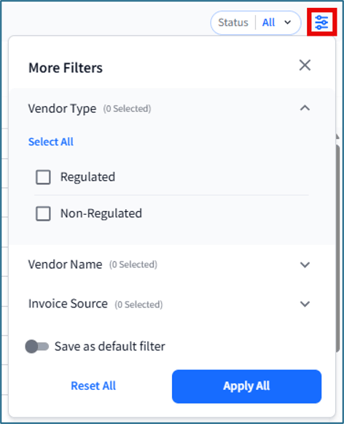
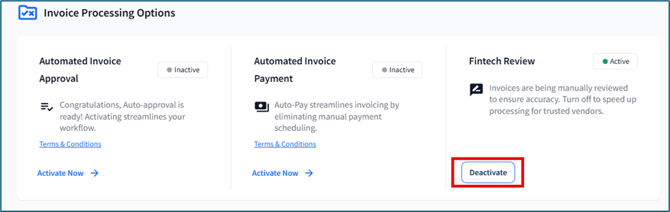
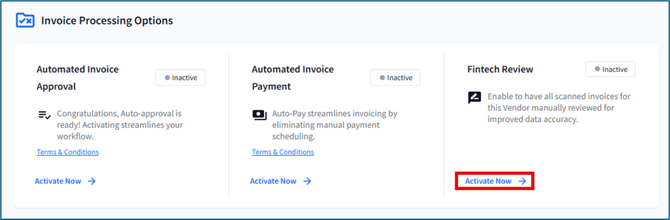
- Select a row, then scroll down to the Fintech Review tile at the bottom of the page. Select either:
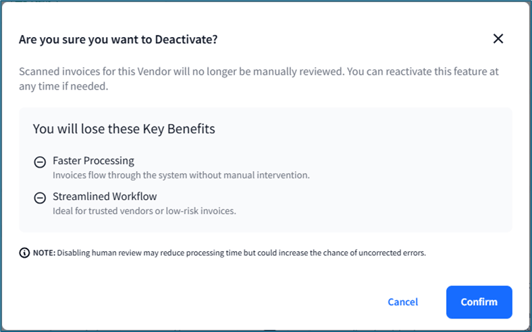
- Deactivate, then Confirm:
- Activate Now, then Activate:
⚠️ If this feature is activated after you've uploaded a non-alcohol invoice, the invoice will not be reviewed by Fintech. If you would like it to be reviewed, you will have to delete and re-upload the invoice in Manage Invoices.
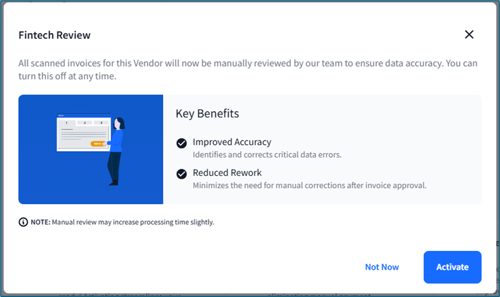
- Deactivate, then Confirm:
Fintech Review by Invoice
⚠️ Fintech Review can only be turned off for an individual invoice with a Processing status. Once turned off, it cannot be turned back on for that invoice.
To disable or enable Fintech Review by invoice:
- Go to Invoices > Manage Invoices and select a recently uploaded invoice that is Processing:

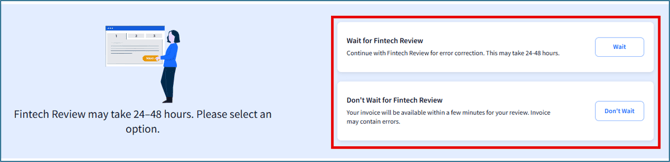
- Choose either Wait or Don't Wait:
- If you selected Don't Wait, confirm your choice by then clicking Yes, Skip Fintech Review:
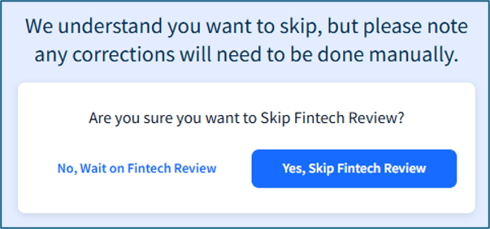
- If you selected Don't Wait, confirm your choice by then clicking Yes, Skip Fintech Review:
Using Fintech Review with Auto Approve and Auto Pay
Auto Approve and Auto Pay can be enabled even if Fintech Review is disabled. However, there is a higher risk that an incorrect invoice will be approved and/or scheduled for payment after being uploaded. It is recommended that Fintech Review is activated if either of these features are enabled.