
How scanned invoices are approved, displayed, and exported in the portal can be managed per vendor with Invoice Approval View. These preferences can be changed at any time.
⚠️ This setting can only be edited for vendors who have scanned (uploaded) invoices. Click here to learn more about approving these invoices.
⚠️ Only users with Advanced permissions or higher can change this setting. Learn about user permissions here: Managing Users.
View options include:
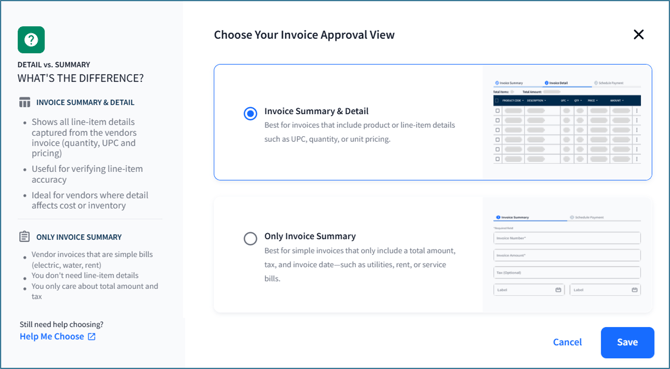
-
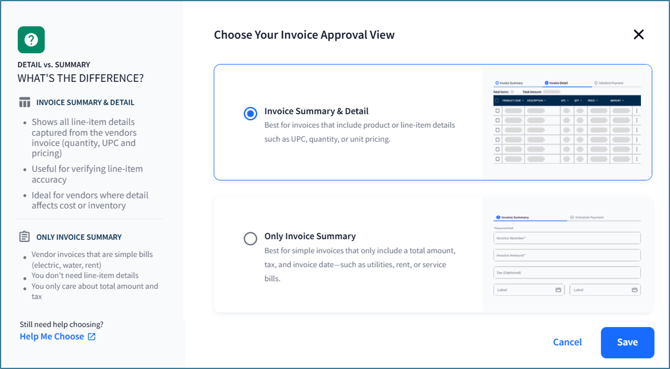
Invoice Summary & Detail - The default invoice view for all vendors. Invoices display product details, including descriptions, UPCs, quantities, and measurements.
-
Only Invoice Summary - A simplified view of an invoice. Invoices will display purchase order information, delivery dates, and invoice totals.
Invoice view changes only apply to future uploads. For example, if Only Invoice Summary is selected, line-item data will not be captured on newly uploaded invoices but can still be seen on invoices uploaded in the past.
View Options and Feature Changes
Below, learn how either view affects the portal.
Invoice Summary & Detail
- During invoice approval (Invoices > Manage Invoices):
- For Premium users, the Invoice Summary and Invoice Detail steps are displayed:

- For Premium Plus users, the Invoice Summary, Invoice Detail, and Schedule Payment steps are displayed:

- For Premium users, the Invoice Summary and Invoice Detail steps are displayed:
- The invoice details page in My Invoices will shows payment, vendor, and line-item details:
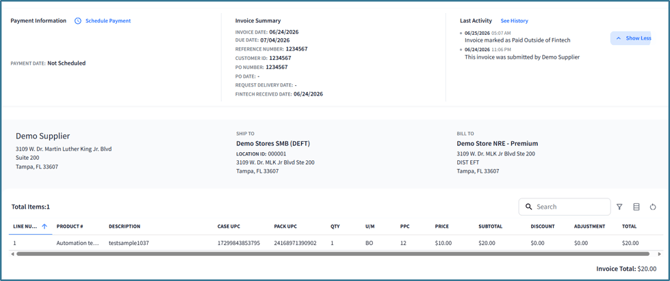
- When exporting invoices from these vendors, the detailed format will apply to the downloaded file.
Only Invoice Summary
- During invoice approval:
- For Premium users, only the Invoice Summary is displayed:
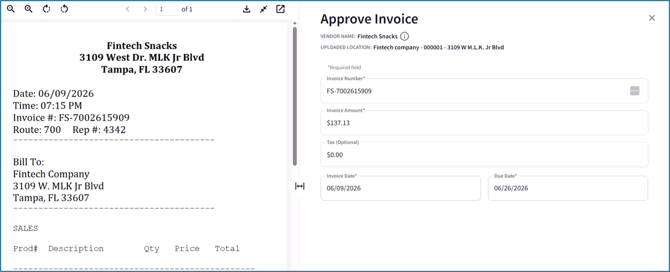
- For Premium Plus users, Invoice Summary and Schedule Payment are displayed:

- For Premium users, only the Invoice Summary is displayed:
- The invoice details page in My Invoices will display payment and vendor information, but not line-item details:
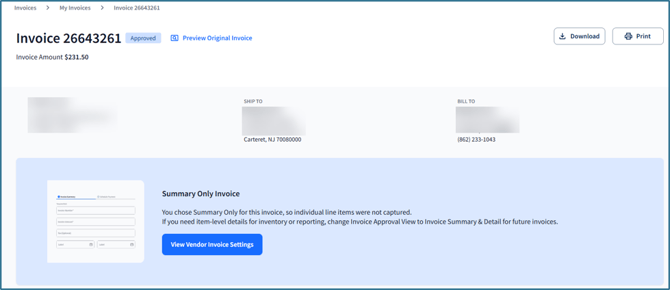
- When exporting invoices from these vendors, the summary format will apply to the downloaded file.
Managing Invoice View Settings
To change how invoices are shown:
-
Go to Vendors > My Vendors, then search for and select a non-alcohol vendor.
-
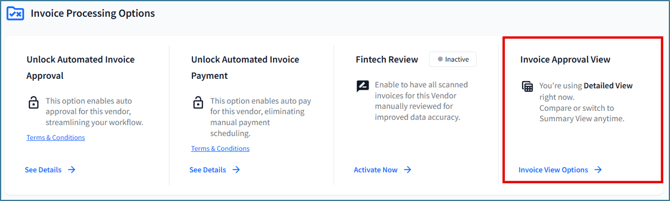
At the bottom of the Vendor Detail page, find Invoice Approval View, then select Invoice View Options:
-
Choose either Invoice Summary & Detail or Only Invoice Summary:
-
Click Save.