
Invoices received by Fintech are automatically checked against submitted purchase orders (PO) to ensure PO numbers are correct before being included in end‑of‑day files. This is done for orders sent to Fintech for syndication to distributors as well as for validation.
⚠️Invoices with PO errors must be corrected before 3:15 pm EST. After this time, the PO errors will be included in your end-of-day file.
Reviewing Invoices
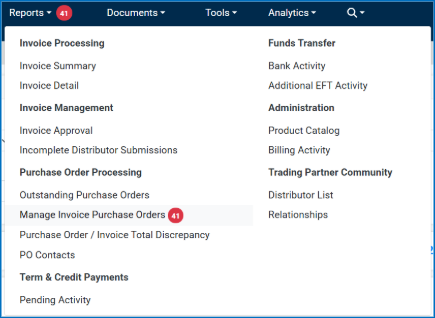
You can review invoices by logging into the Fintech FMS site, clicking Reports and then clicking Manage Invoice Purchase Orders.
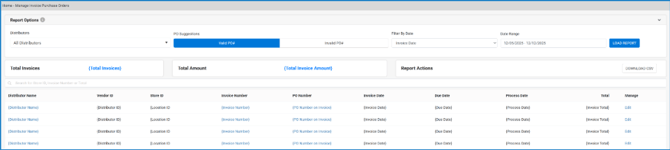
Under PO Suggestions, toggle between:
- Valid PO #: The PO number handled by Fintech matches the PO number on the invoice and is not a duplicate. No action is required.
- Invalid PO #: The PO number is either missing or does not match the corresponding PO number you sent. ! Correct these invoices to avoid missing or incorrect PO numbers in your back-office systems.
You can filter by distributor, date range or by:
- Invoice date: The date the invoice was issued
- Due date: When the invoice is due to be paid
- Process date: Date when the invoice has been processed by Fintech
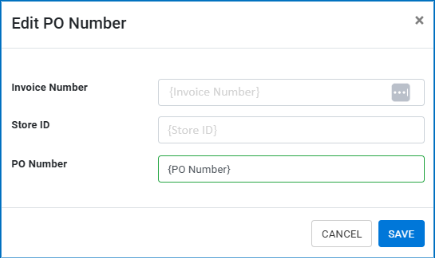
If you need to edit the PO number, click the Edit button under the Manage column for that invoice. Enter the desired PO number and hit Save.
Invalid PO Numbers
When distributors send invoices to Fintech, they’re requested to include the PO numbers in the details. Invoices are flagged as invalid when they do not have a PO number or if the PO number does not match.
You will get an emailed alert when this error occurs for you to correct before the invoice is sent to your back-office system. See Understanding Alerts for information about PO errors.
Invoices are sent to your back-office system at 3:15 pm EST each day. Incorrect PO numbers need to be corrected prior to that time to avoid being included in the end-of-day file.
View flagged invoices by toggling Invalid PO #. Filter by distributor, date, and/or date range as noted above and hit Load Report.
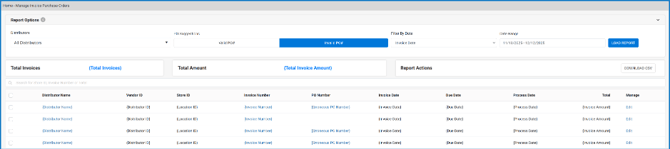
To update the PO number, click the Edit button under the Manage column for that invoice and enter the correct PO number as noted above. Remember, this must be done prior to the 3:15 pm EST cutoff.
⚠️If the PO number was incorrectly flagged as invalid, check the box next to the invoice(s) and hit Move to Valid on the bottom right corner to remove them from the “Invalid PO #” list.

Reviewing Invoices with Suggested PO Numbers
To avoid missing PO numbers, you can have the Suggested PO feature enabled. This option can be turned on for each of your distributors. It provides a correct PO number for any incorrect or missing PO numbers on invoices.
To enable this feature for all distributors or any subset of your distributors, please email implementation@fintech.com.
You will still need to approve the suggestion. If no action is taken by you by 3:15 pm EST on the day of the invoice, the erroneous PO details will be included in your end of day file.
If enabled, toggle Suggested PO # to view invoices with suggested purchase order numbers. (If your company does not have this feature enabled, you will not see the toggle.)
Filter or search for the desired invoice(s)
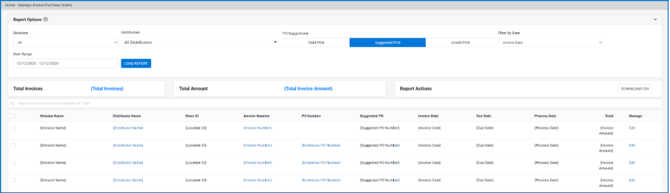
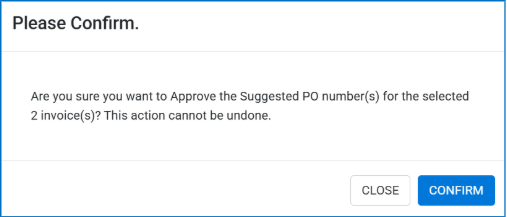
To accept a suggested PO number, check the box next to those invoices and click the “Approve Suggested” button in the bottom right corner, then click Confirm.

To decline a suggested PO number, check the box next to those invoices and click the “Decline Suggested” button. in the bottom right corner of the screen to mark the suggested PO as N/A
If you declined the suggestion or simply want to update the PO number on your own, click the Edit button under the Manage column for that invoice. Enter the correct PO number and click the Save button.