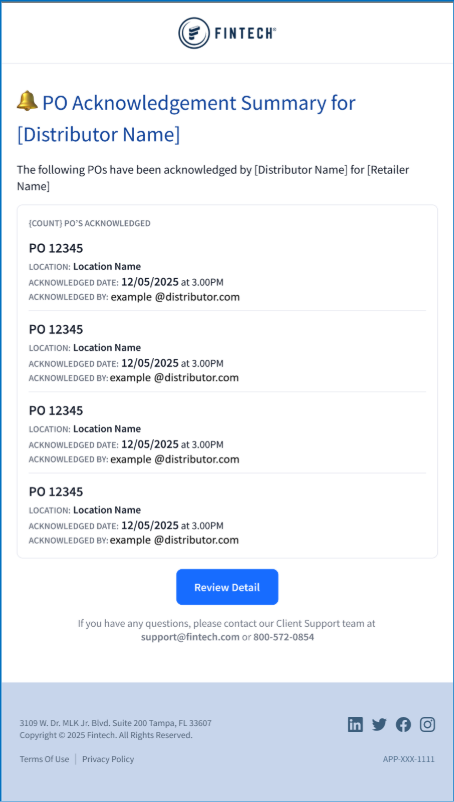
When a purchase order transaction fails or invoices contain incorrect or missing PO numbers, Fintech sends an email alert to the retailer’s contacts.
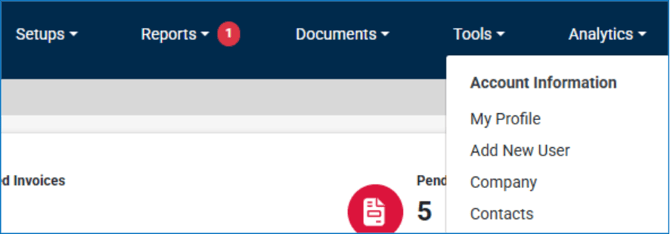
Users added to Contacts will receive an email alert regarding PO status. This is your internal team. You manage these users under Tools >> Account Information.
Do not confuse these Contacts with PO Contacts, the distributor personnel who receive your purchase orders. Learn more about PO Contacts here.
- Erroneous or Missing POs on Invoices
- Missing Distributor to Location Relationships
- Missing Vendor IDs
- Invalid File Type
- Invalid EDI Transaction Type
- Data Validation Error
- PO Acknowledgement Confirmation
|
Issue |
Impact |
|
Erroneous or Missing POs on Invoices |
Invoice with missing/incorrect PO # will be in end-of-day file |
|
Missing Distributor to Location Relationships |
PO cannot be processed without an active relationship between location and the distributor |
|
Missing Vendor IDs |
PO cannot be processed without a valid Vendor ID. |
|
Invalid File Type |
PO cannot be processed if the type does not match the format established between retailer and Fintech. |
|
Data Validation Error |
PO cannot be processed if information within a file does not match the format established between retailer and Fintech. |
|
PO Acknowledgement Confirmation |
Indicates successful receipt of POs by the distributor. You can receive summary details when POs are acknowledged. |
Erroneous or Missing POs on Invoices
Fintech requests distributors include PO numbers in the invoice details. If a PO number is missing or contains an incorrect PO number, the retailer will receive an alert email with:
- Distributor Name
- Invoice Number
- Invoice Date
- Total Invoice Amount
⚠️If the PO number is not added or corrected by 3:15 pm (EST), these details will be in the retailer’s end-of-day file.
To correct, follow these steps:
1. Log into the Fintech FMS Portal
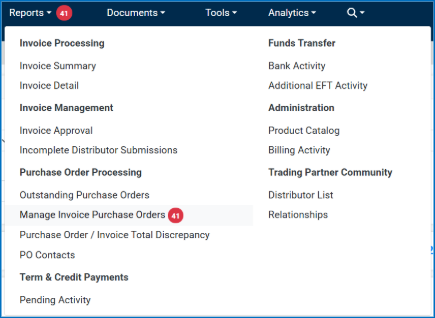
2. Go to Reports, then click on Manage Invoice Purchase Orders.
3. In the Report Options, select “Invalid PO#” from the PO Suggestions toggle, enter today’s date in the Date Range and then click Load Report to see the Invoices with missing or incorrect data.
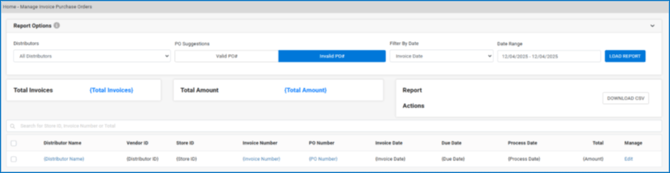
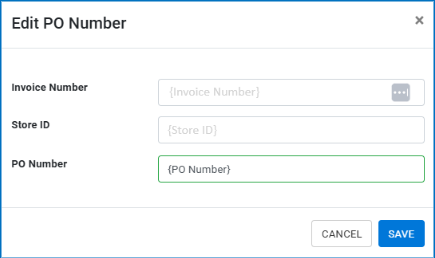
4. Select Edit for the invoice you would like to update.
5. Enter the correct PO number and click the Save button.
Missing Distributor-to-Location Relationships
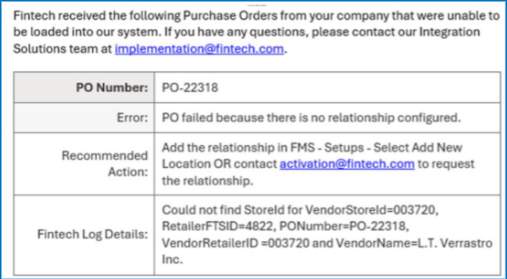
retailer location must have an active relationship with a distributor for Fintech to process a PO. If no relationship exists between the location and distributor, the retailer will get an alert with the following information:
- PO Number
- Error Message: “PO failed because there is no relationship configured.”
- Recommended action: Add the relationship in FMS or contact Fintech to request the relationship
- Fintech Log Details:
- Location ID
- If using CrunchTime this will be the Distributor’s ID for that location
- Retailer’s ID for that Distributor
- Fintech ID for the Retailer (Retailer FTS ID)
- PO Number
- Vendor Name
- Location ID
To fix this:
- Follow the steps to Add a New Location if the location is new.
- If the relationship has been initiated by the distributor, then approve the pending relationship in FMS, or
- Contact activation@fintech.com to request the relationship.
Missing Vendor ID
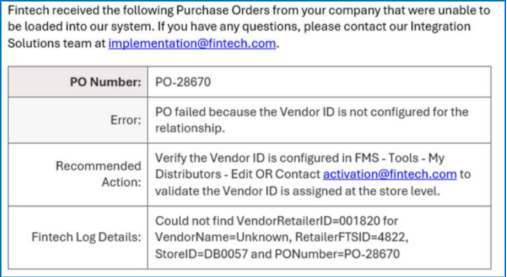
To process a PO, Fintech needs a Vendor ID to route the order correctly. If missing, the PO cannot be processed because Fintech cannot identify the distributor. The email alert will contain:
- PO Number
- Error Message: “PO failed because the Vendor ID is not configured for the relationship.”
- Recommended action: Verify the Vendor ID is configured in FMS or contact Fintech to validate that the Vendor ID is assigned at the location level.
- Fintech Log Details:
- Retailer’s ID for that Distributor
- Vendor Name = Unknown
- Retailer FTS ID (Fintech ID)
- Location ID
- If using Crunchtime this will be the Distributor’s ID for that location
- PO Number
Retailers can fix this issue one of two ways:
- Verify and/or update the Vendor ID in FMS to align with how it is stored in your back-office system or:
- Contact activation@fintech.com to validate that the Vendor ID is assigned at the store level.
To update the Vendor ID:
- Log into the Fintech FMS Portal
- Go to the My Distributors page under the Tools dropdown
- Search for the Distributor name and click the Edit button.
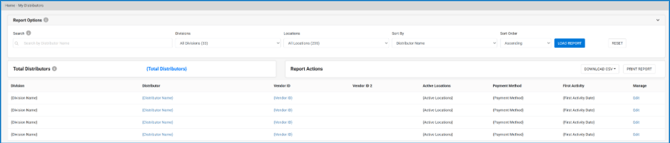
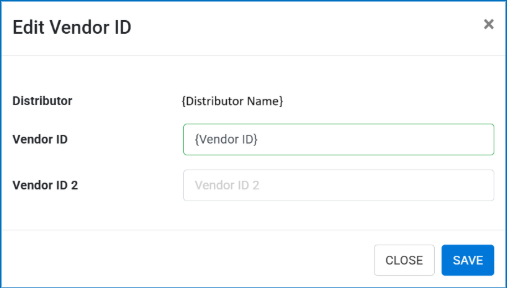
- Validate the Vendor ID matches what is stored in your back-office system and update if needed, then click Save:
Invalid File Type/Invalid EDI Transaction Type
This error occurs when the file or transaction types do not match the format agreed upon by the retailer and Fintech.
If the file type is incorrect, the alert email retailers receive will contain:
- File Name
- File Origin
- Error Message

This error can be resolved one of two ways:
- Resubmit the PO file using a valid file type, or
- Contact implementation@fintech.com to validate that the file and transaction type match Fintech expectations.
PO Acknowledgement Confirmation
If you have configured yourself as a recipient of the Acknowledgement Confirmation in the PO Contacts screen, you will receive a summary email indicating the POs that have been reviewed and acknowledged by that distributor. This indicates that the distributor has received and reviewed the orders and intends on fulfilling them. The email contents include:
- The distributor name
- The PO numbers
- The ship-to location
- The acknowledgement date
- The distributor contact who acknowledged the order