
⚠️ Users who have migrated from the Legacy Portal (FMS) cannot enroll in MFA at this time.
What Is Multi‑Factor Authentication?
Multi‑Factor Authentication (MFA) is a security feature that protects your account by requiring more than just your password when you sign in. Instead of relying on one piece of information (which can be guessed, stolen, or leaked), MFA adds an additional security check to make sure it’s really you.
Why Are We Adding MFA?
We’re implementing MFA to better protect your account, your data, and our organization’s systems.
MFA helps:
-
Prevent unauthorized access, even if a password is compromised
-
Keep sensitive work information secure
-
Comply with modern security standards and industry best practices
In short, MFA strengthens our defenses with minimal effort required on your part.
How to Enroll in MFA
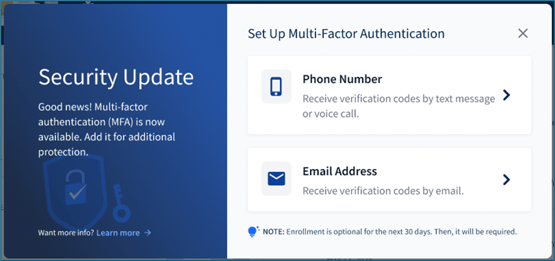
⚠️ Upon receiving the first prompt to set up MFA, enrollment will be optional for 30 days. After 30 days, it will be required.
To enroll in multi-factor authentication:
- After signing into the portal, you’ll receive a prompt to set up MFA. Choose an authentication method - phone number or email address:
- If you select phone number:
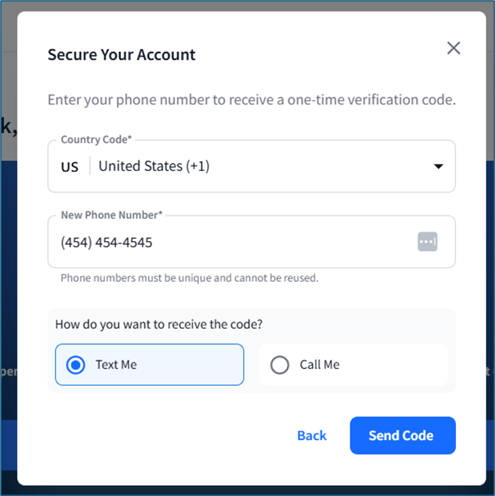
- Enter your information in the following prompt to receive a verification code by text or phone call:
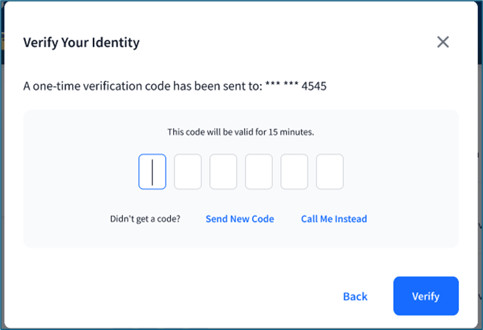
- Enter the verification code, then click Verify:
- You will receive a confirmation, then be logged out of the portal:
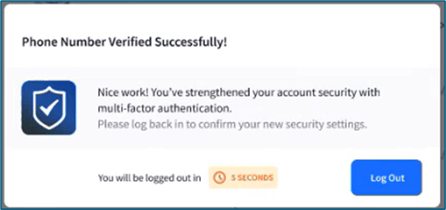
- Log back into the portal to verify your MFA method and complete the setup:
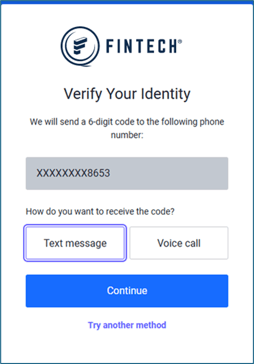
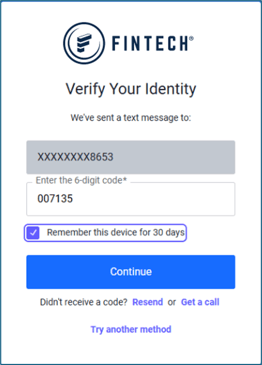
- Enter your information in the following prompt to receive a verification code by text or phone call:
- If you select email address:
- Enter your information in the following prompt to receive a verification code by email from noreply@fintech.com:

- Enter the verification code, then click Verify:

- You will receive a confirmation, then be logged out of the portal:
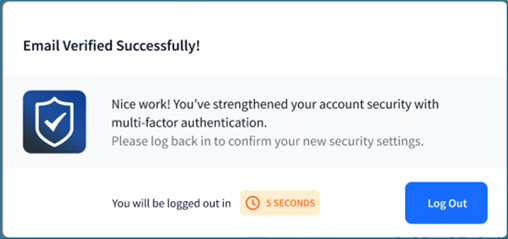
- Log back into the portal to verify your MFA method and complete the setup:
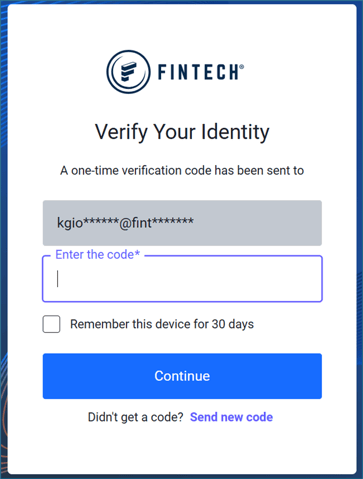
- Enter your information in the following prompt to receive a verification code by email from noreply@fintech.com:
Going forward, logging into the portal will occasionally include an authentication step before you are able to access your account.
⚠️ If you lose access to the authentication method you register, you will need to contact Client Support to reset the method.
Adding or Editing MFA Methods
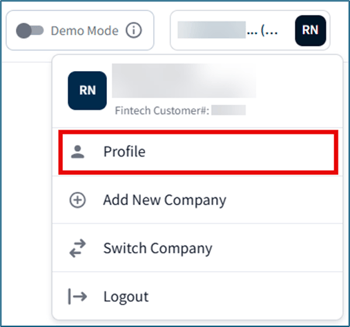
If you dismiss the MFA prompt and would like to add or edit it at a later time, you can do so in Profile:
- Select your profile icon in the top right corner of the screen, then click Profile:
- Go to Security Settings > Multi-Factor Authentication Management, and either click Enroll Now to add an authentication method, or click the pencil icon to edit an existing phone number:
⚠️ Only phone numbers can be edited. An email method cannot be edited without help from Client Support.
⚠️ If editing a method, you must have access to the original method's credentials to verify it can be changed. If you lose access to the original method, contact Client Support.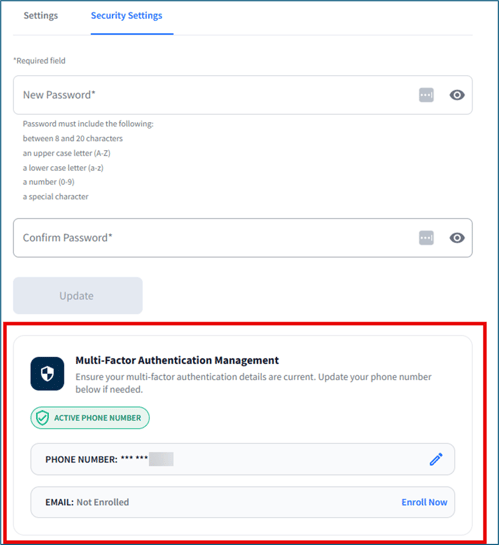
- Follow the prompts to make your updates.
Troubleshooting FAQ
I'm not receiving a verification code when enrolling or logging in.
When enrolling in MFA or when logging into your account, wait at least 1 minute to receive a verification code. If the code is sent by email, check your spam or junk folder. Verification codes expire within 10 minutes, so always use the most recent code received.
After 1 minute, click Send New Code or Resend Code on the verification screen. You can resend a code up to 5 times. Once a code has been sent 5 times and verification has not taken place, your account will be locked and will require Client Support to remove the lockout.
I entered my verification code and received an Invalid Code or Code Expired error.
On the verification code, click either Send New Code or Resend Code and wait at least 1 minute to receive the code. Verification codes expire within 10 minutes, so always use the most recent code received.
I received a verification code but was not enrolling in MFA or logging into my account.
I enrolled in MFA, but I'm being prompted to enroll again and/or my status is "Not Enrolled."
After completing MFA enrollment, a confirmation message should appear. If this occurred and you are still being prompted to enroll, first try refreshing the page or logging out and back in. If the prompt or status persists, please contact Client Support.
I want to change the MFA method I enrolled with (changing from phone to email or email to phone).
Managing or replacing MFA methods depends on the method chosen:
-
Phone numbers can be edited in Profile > Security Settings, but cannot be removed.
-
Email address cannot be edited or removed once enrolled.
Contact Client Support for assistance.