
Using QuickBooks to create invoice reports makes it easy to send them to Fintech. Follow the steps below to learn how to generate and export your reports. The following article contains:
⚠️ If your reporting interface in QuickBooks Online has changed from Classic View to Modern View, exported reports may not upload correctly to your Fintech account. Click here for troubleshooting options.
Creating Reports in QuickBooks Online: Modern View
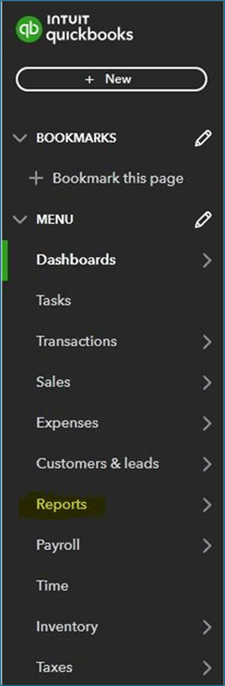
- From the menu on the left, go to Reports > Standard Reports:
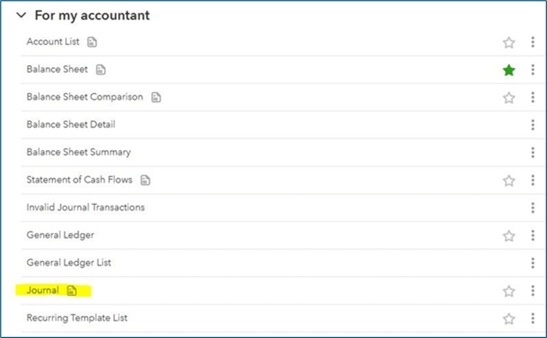
- Expand For my accountant, then select Journal:
- Select Customize on the right side of the screen:

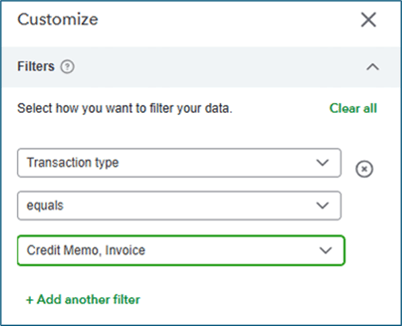
- In the Customize window, expand the Filters section. Select Transaction type, the equals operator, then choose Credit Memo and Invoice:
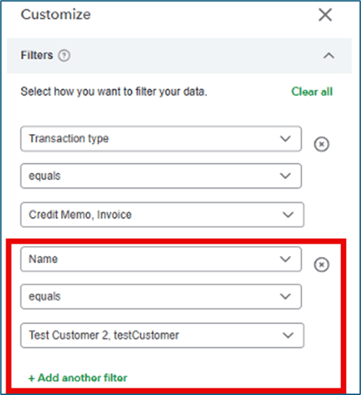
- Click Add another filter, select Name, the equals operator, then choose all the retailers you do business with through Fintech:
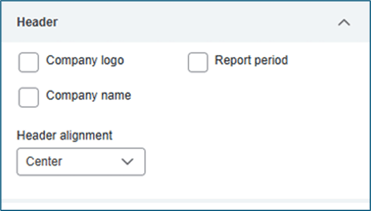
- Expand Header and deselect all boxes:
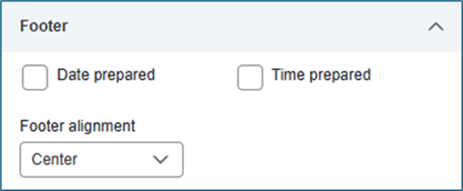
- Expand Footer and deselect all boxes:
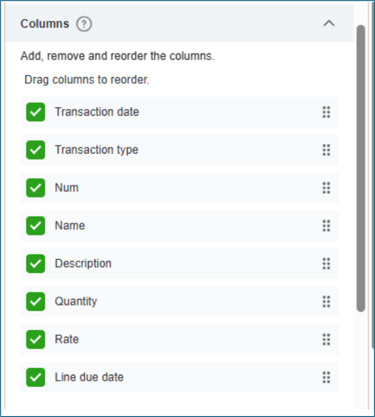
- Expand Columns and confirm the following columns are selected (remove all other selections):
⚠️ If you use Product/Service full name instead of a Description, remove Description and replace it with Product/Service: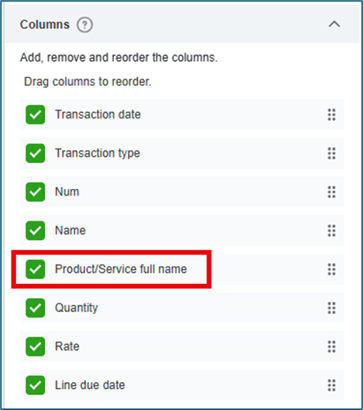
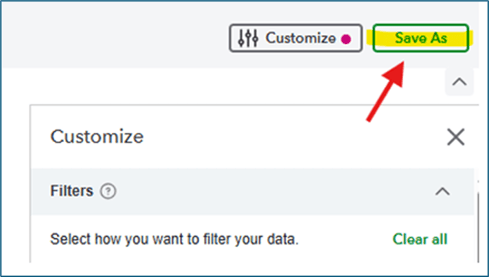
- Click Save As above the Customize window:
- Name the report Fintech, then select Save:
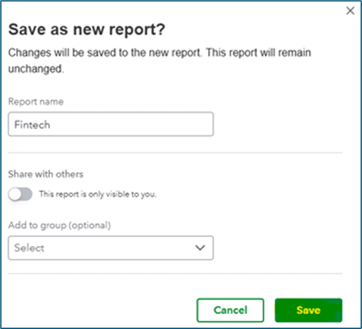
Find the saved report in QuickBooks under Reports > Custom Reports > select the Fintech report. To learn how to export the file, go to the export instructions below.
Exporting Your File
-
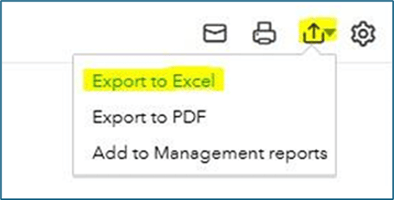
After opening the Fintech report, select Export > Export to Excel:
-
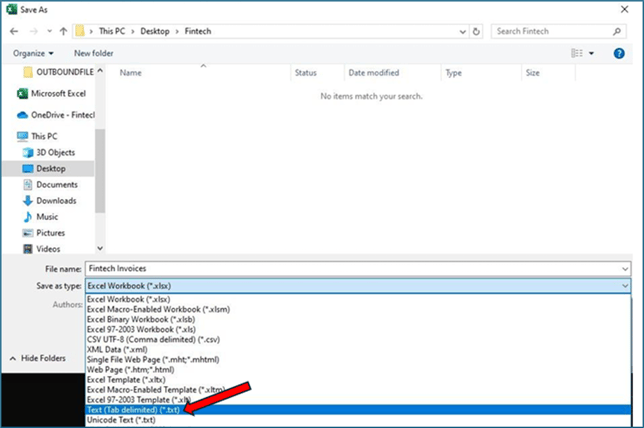
Once the file is open in Excel, go to File > Save As and change the file type to Text (Tab delimited) (*.txt):
-
Save the file to your computer.
Contact your Fintech Implementation Representative for a walk-through of how to upload the file to the Fintech FMS website.
Files Not Uploading?
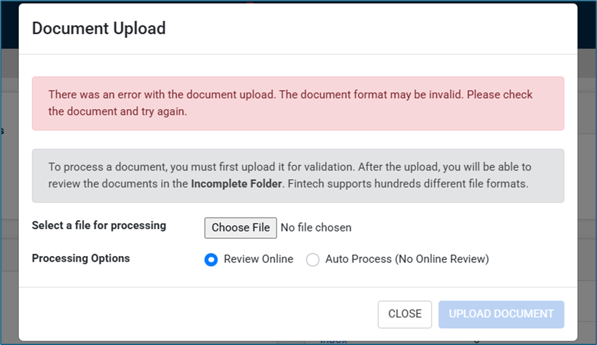
If you receive an error when trying to upload QuickBooks reports to your Fintech account, either:
-
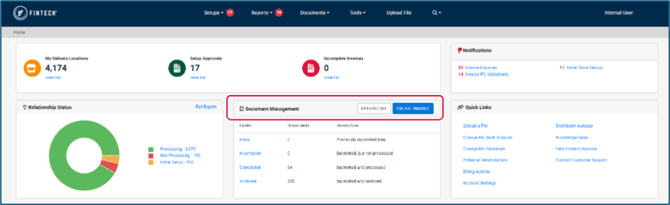
Submit invoices through the Invoice Builder. This is located directly on the FMS Home page under Document Management:
-
Contact our team directly at Implementation@fintech.com for the fastest resolution. To help speed up support, please include:
-
Your company name and/or Fintech ID.
-
A copy of the export file, if possible.
- Details on whether your QuickBooks Online account updated to the Modern View for reports.
-