
OrderSource sends purchase orders to distributors via PO Syndication, either by EDI or by email (if a distributor is not set for EDI transmission). PO Contacts ensures the right people get the PO for that location.
⚠️Contacts should be reviewed and updated regularly to ensure PO delivery operates without errors. Contacts will change over time, so we suggest setting a regular reminder.
You can manage contacts from two places:
- PO Contacts under the Reports section. Run reports grouped by distributor or by location. This screen also assigns locations to distributor contacts. You can switch to Manage PO Contacts the bottom left area of this screen.

- Manage PO Contacts under the Tools section. This view lets you filter to Distributor Contacts to edit, add, or remove distributor contacts. You can switch back to the PO Contacts report screen on the bottom left of the screen.

Accessing the Manage PO Contacts Screen
To access the screen:
1, Log into the Fintech FMS site.2. Go to the PO Contacts under the Reports dropdown in the Fintech FMS Portal. 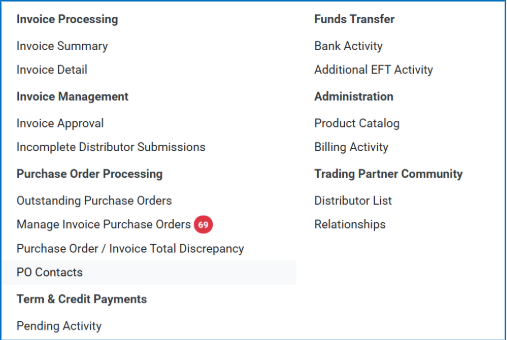
Reviewing Your PO Contacts
Current contacts will be listed by distributor, along with your locations that the contact services. You may elect to view your contacts by distributor or by location by selecting the “GROUP BY:” in the Report Actions section.
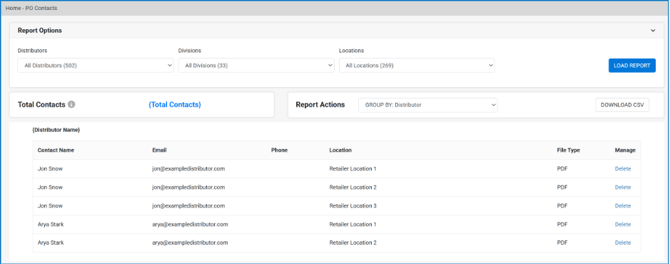
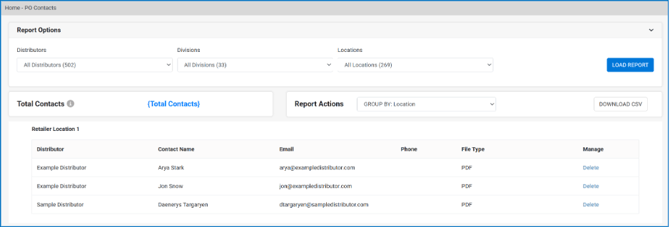
If a contact no longer services a location, you can remove that contact by clicking the Delete button under the Manage column for that contact.
💡This will not delete the contact itself. It will simply remove the relationship of that contact to the location.
Managing PO Contacts
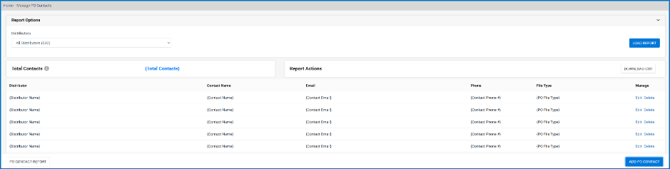
To set up or edit an existing contact, click the Manage Contacts button in the bottom left corner of the PO Contacts screen.
For each vendor, you can decide to receive a copy of your PO in your email to confirm it was sent successfully. You can also choose whether to receive a PO Acknowledgement summary when the vendor confirms they received the PO.
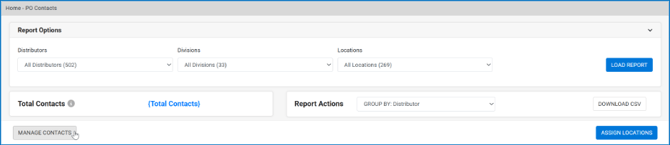
From there, you will see all contacts by name, email, and associated company.
Editing An Existing Contact
1. To edit an existing contact, click the Edit button under the Manage column for that contact.
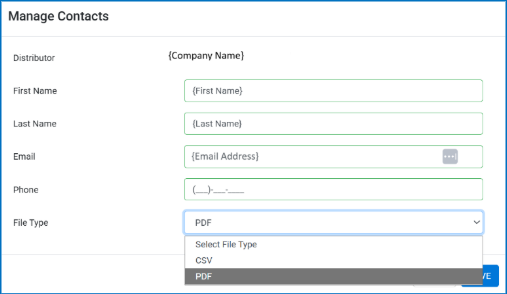
- First Name
- Last Name
- Email Address
- Phone Number (Optional)
- CSV
4. Click save when done.
Adding A New Contact
1. To add a new contact, click the Add PO Contact button in the bottom right corner of the Manage PO Contacts screen.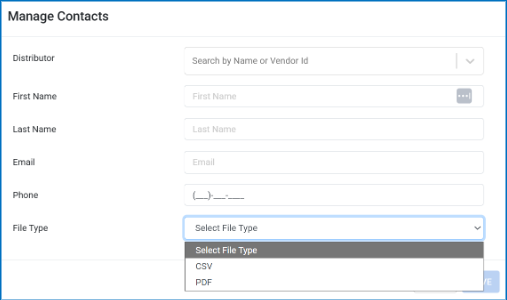
2. Search for the distributor name by typing in the search bar at the top of the pop up or by selecting from the dropdown menu.
3. Fill out the following fields:- First Name
- Last Name
- Email Address
- Phone Number (Optional)
4. Select the type of file that will contain the PO details for that contact. This is the format they will receive the PO:
- CSV
5. Click save when done.
Deleting A Contact
To remove a contact altogether, click the Delete button under the Manage column for that contact in the Manage PO Contacts screen.
Assigning Contacts to Locations
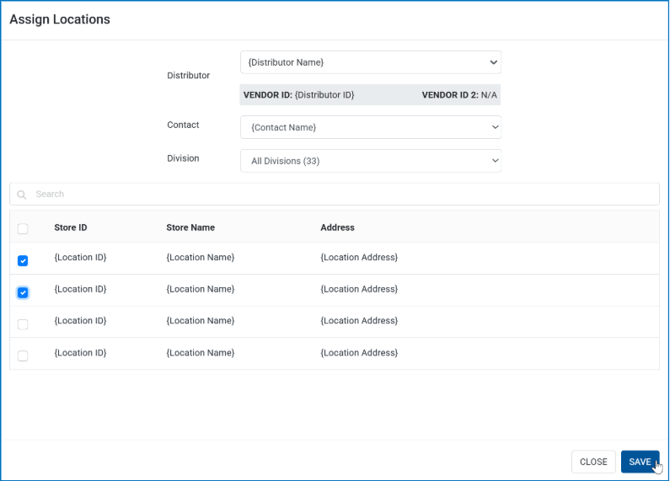
1. To assign a contact to a set of locations, click the Assign Locations button in the bottom right corner of the PO Contacts screen.
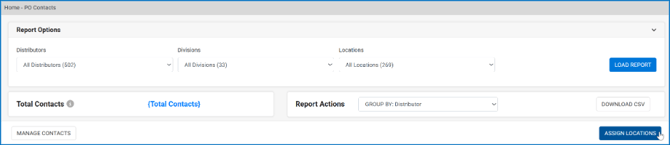
2. From the pop up, select the Distributor to whom the contact is associated
3. Next, select the Contact Name from the list of contacts associated with that distributor:
4. Finally, select the locations that the contact will receive POs for by checking the box next to each one. Then click Save.
⚠️A relationship must exist between a location and a distributor to be able to associate a distributor contact.If you do not see a location listed for a given distributor, do one of the following:
- Follow the steps to Add a New Location.
- If the relationship has been initiated by the distributor, then approve it in FMS.
- If you need help, contact activation@fintech.com to request the relationship.
Best Practices
To verify that the PO emails are being sent by Fintech and received by the distributors, set yourself up as a contact under each distributor and assign yourself to locations as if you were a distributor contact yourself.
This ensures that both you and your distributors will receive the PO email and can be helpful in the event where a PO email is missing.
If you need assistance with this, please contact implementation@fintech.com