
Adding a new location, adding a new distributor, or creating a new relationship between a location and a distributor are all requests that will be handled by the Fintech Implementation team (implementation@fintech.com). You will create the request through the Request Setups wizard.
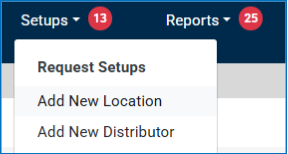
Start by navigating to the Request Setups sub-menu under the Setups dropdown in the Fintech FMS Portal.
Adding a New Location
To request the setup of a new location (and its associated distributors) follow these steps:
If the new location has a separate tax identifier or requires a new bank account, contact your account manager or call Fintech at 800-572-0854 (option 2) for further assistance.
If the new location does not have a separate tax identifier and does not require a new bank account, then proceed with the following steps:
1. Go to Add New Location under Request Setups.
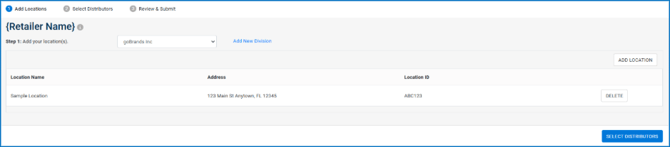
2. Add Locations
- If you have multiple divisions, you will need to select the division that the new location will be added to from the drop-down menu.
- If you need to create a new division for the location(s), click the Add New Division link next to the drop-down menu.
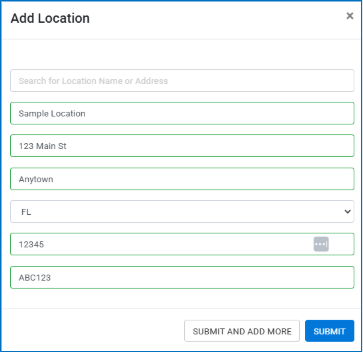
- If you do not have multiple divisions or once you have selected one, then click the Add Location button to add your location details.

A popup will appear asking you to enter the required details to set up the location. Once you have completed the form, click Submit. If you are adding multiple locations, you can click Submit and Add More to add another location.
Once you have added all the locations, click the Select Distributors button to move on to the next step.
3. Select Distributors
To add distributors to the new location(s), check the box next to each distributor you wish to add. Then click the checkbox next to each location to be added to the distributor. Then click the Review Request button.
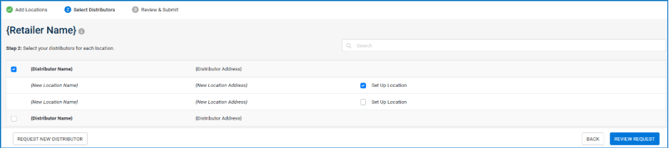
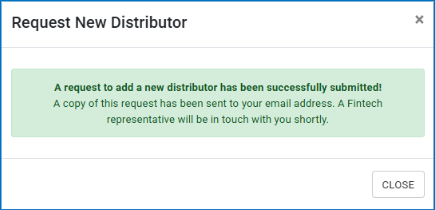
If you need to add a distributor, click the Request New Distributor button. A popup will appear asking you to load the required distributor details. Once you submit, a request will be sent to Fintech to request that distributor.
4. Review & Submit
Review the locations and distributors associated with each location. If you are satisfied, then click the Submit Request button.

A Fintech representative will review your request and contact you.
Adding a New Location to Distributor Relationship
1. Under Request Setups, click Add New Distributor.
2. Choose LocationsIf you have multiple divisions, first select the location’s division. Then select the state from the dropdown menu. This should be the state where the distributor is located.
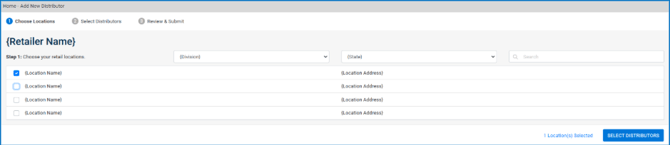
A list of your locations will appear. Check each location, then click Select Distributors to move on to the next step.
3. Select DistributorsNow select each distributor to add and click the checkbox
To connect distributors to the location(s), check the box next to each distributor. Then click the checkbox next to each location that will be added for that distributor and then click the Review Request button.
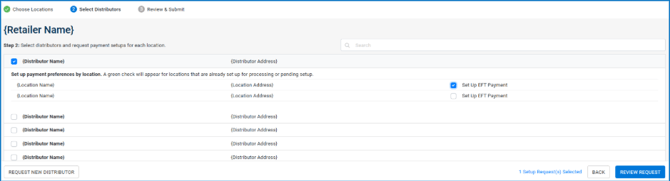
If you would like to add a new distributor, click the Request New Distributor button. A popup will appear asking you to load the required distributor details. Once you submit, a request will be sent to Fintech to request that distributor.
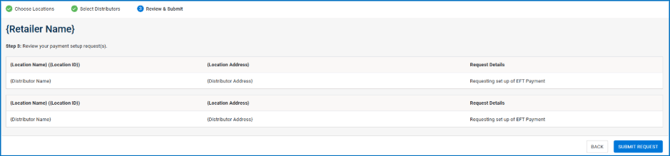
4. Review & SubmitThe final step is to review the distributors you want to be associated with each location. If you are satisfied, then click the Submit Request button.
Adding a New Distributor
You can add a distributor from either the Add New Location or Add New Distributor sections.
On Step 2 of either process, click the Request New Distributor button. A popup will appear asking you to load the required distributor details. Once you submit, a request will be sent to Fintech to request that distributor.