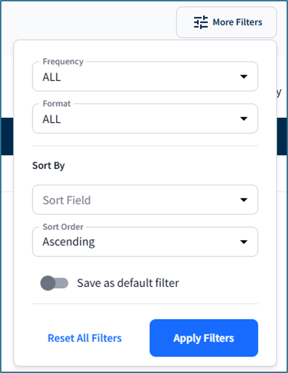
The Document Center provides a centralized location to download previously generated reports and manage report subscriptions completed from the Sales section of the portal:
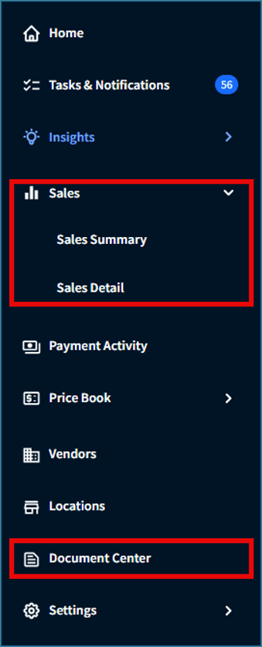
Watch the walkthrough video or read more below:⚠️ The Document Center only displays reports and subscriptions associated with your account and not all user accounts.
Download Tab
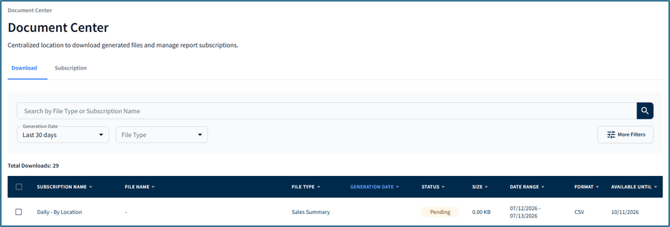
The Download tab displays reports generated from your account that are available for download:
⚠️ Reports are retained for 90 days from their generation date. Refer to Available Until column to see when a report will expire.
Filtering
Reports are sorted by Generation Date by default you can select any of the column headers to apply a different sort:
Use the search bar to find reports by File Type (type of report generated) or Subscription Name. You can also filter results using the Generation Date and File Type dropdowns:

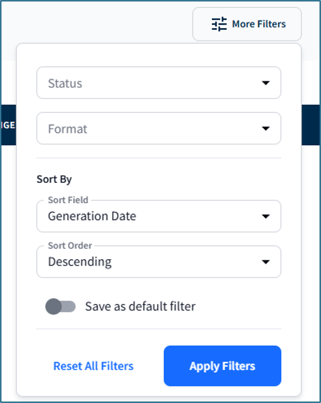
More Filters provides more sort options, including by Status and Format (Excel or CSV). Choose how to sort the table by selecting Sort Field (column) and Sort Order (Ascending or Descending). To automatically apply these settings during future visits, toggle Save as Default Filter.
Report statuses include:
- All - Displays reports with all statuses (Started, Pending, and Completed).
- Started - Report generation has started but has not yet been submitted.
- Pending - The report is currently being generated.
- Completed - The report has been generated and is available for download.
Downloading Reports
To download one or more reports as a CSV, select the desired report(s) and click Download: 
Subscription Tab
The Subscription tab displays reports you subscribe to, allowing you to view, search, and manage active and inactive subscriptions:
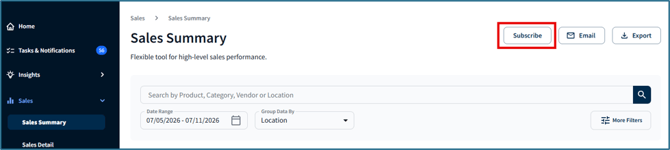
⚠️ New subscriptions cannot be created from the Subscription tab. To create a subscription, go to a report in Sales, then select Subscribe:

Managing Subscriptions
To manage subscriptions, hover over a row to:

-
View Parameters - View subscription details, including the associated vendor(s), store(s), product categories, product(s), and more:

- Edit (pencil icon) - Click the pencil icon to update the subscription's name, Start Date or End Date, then click Save:

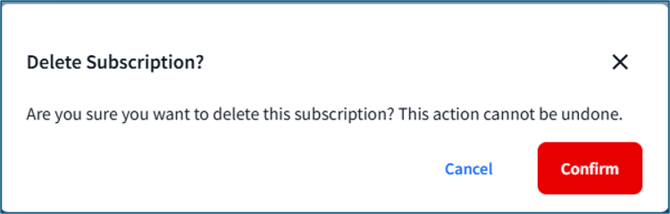
- Delete (trash can icon) - Click the trash can and select Confirm to delete the subscription. This cannot be undone:
Filtering
Select any column header to sort the table:

You can also toggle View Active Subscriptions Only to display only active subscriptions and remove inactive ones from the table:
Use the search bar to find subscriptions by Subscription Name or File Type (type of report generated). You can also filter results using the File Type dropdown:

Select More Filters to filter subscriptions by the Frequency in which they are generated (Daily, Weekly, Monthly) and Format (Excel, CSV). Choose how to sort the table by selecting Sort Field (column) and Sort Order (Ascending or Descending). To automatically apply these settings during future visits, toggle Save as Default Filter: