
The Sales Detail page shows a list of all product transactions across your locations within a selected date range.
The table also includes the location each product is sold at, the product name, and its UPC number. The table includes the date payment was received for a product (Post Date), number of units sold (Units Sold), wholesale cost of the product (Cost) and Total Sales Dollars, which is the units sold multiplied by the retailer cost.
💡You must use the search bar, select a date range, or choose a location to populate data on the page.
By default, the table is sorted by Location, but you can change the sort order by clicking any column header.
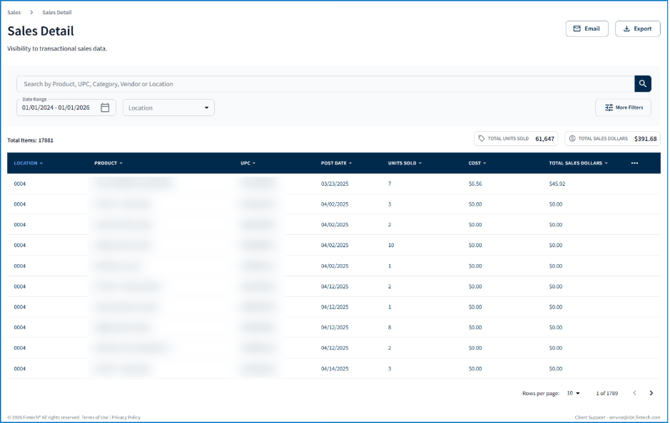
You can also add columns to the table by clicking the ellipses at the end of the header, which includes viewing a product’s Category, Vendor, and/or Sales Date:
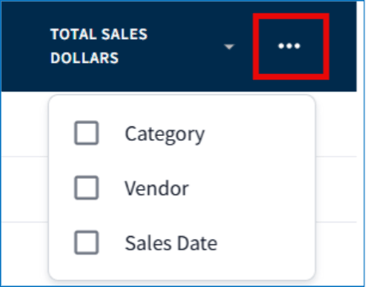
💡 Sale Date is when the product was scanned and purchased in-store.
To learn more, watch the overview video or continue reading below:
💡 Learn how to use the Sales Summary Report.
Filtering

You can refine the table by using the following filters:
-
Search bar - Find sales by product name, UPC, product category, vendor, or location where product can be purchased.
-
Date Range - View sales within a specific time period.
-
Location - Filter product sales by store location.
Above the table, the total number of units sold and the total sales dollars for all transactions are calculated and displayed. These totals can change based on filter selections:

Click More Filters to further narrow results by Vendor, Category, Product, UPC, or Date Type. Use Sort By to organize the table by a specific column:
💡 For Date Type, Post Date is the date payment was received for a purchased product. Sale Date is when the product was scanned and purchased in-store. These dates may be different.
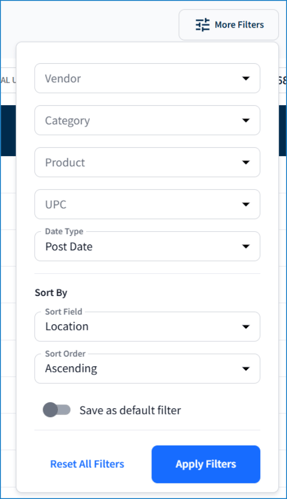
To save your selected filters as the default view each time you log in, toggle Save as default filter, then click Apply Filters.
Emailing or Exporting a Sales Summary
Click Email to end the view of the table as a CSV file to the email associated with your portal account. If you’d like to download the data as a CSV file, click Export:
💡 For larger data sets, emailing is recommended rather than exporting.
