
Sales Trends helps vendors understand how sales change over time across retailers, stores, products, and state. It contains two trend reports:
- Sales Trending – a flexible, continuous trend analysis over a custom date range
- Trends by Period – a structured month‑over‑month or quarter‑over‑quarter view with year‑over‑year context.
Together, these tools help you spot patterns and make margin-positive decisions.
Sales Trending
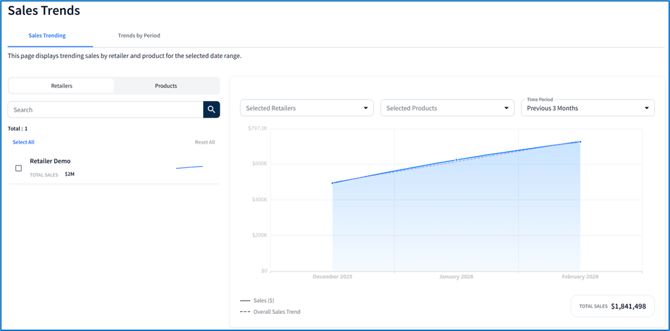
Sales Trending focuses on analyzing sale patterns over time. The chart can highlight trends based on the retailers and/or products:
Some use cases for this report include:
-
Finding causes for increases and decreases in revenue.
-
Determining if distribution locations need to be adjusted - are there low revenue retailers that can be replaced?
- Determining if the products being delivered to locations needs to be adjusted.
Filtering
Above the line graph on the right, use dropdown filters to tailor what you see. View sales based on a selection of Retailers, Products, or an assortment of both. Review data from a specific date range using the Time Period filter; presets are available or a custom range can be set (e.g., September 1 through December 31).
💡 The Time Period filter defaults to displaying data from the last 3 months.

On the left, all available filters are grouped into tabs: Retailers and Products, which are organized by sales performance (highest to lowest). A total sales dollar amount is listed for each line-item (dependent on Time Period filter) and a mini-trend line is included to help you quickly assess sales performance without having to select the line-item:
⚠️ Sales dollars are based on provided suggested retail price and may not reflect promotions, discounts, or other changes that are not provided.
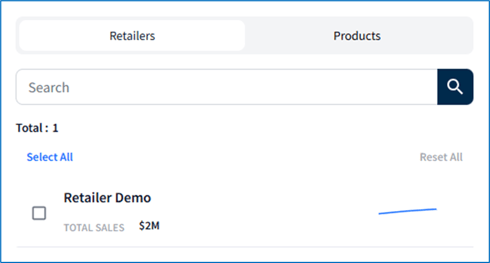
Click individual boxes to add or remove the selection as a filter, click Select All at the top left to include the list as filters, or click Clear All at the top right to remove them:
💡 Options that have already been selected from the dropdowns above the graph will be indicated by a check-mark next to their name.
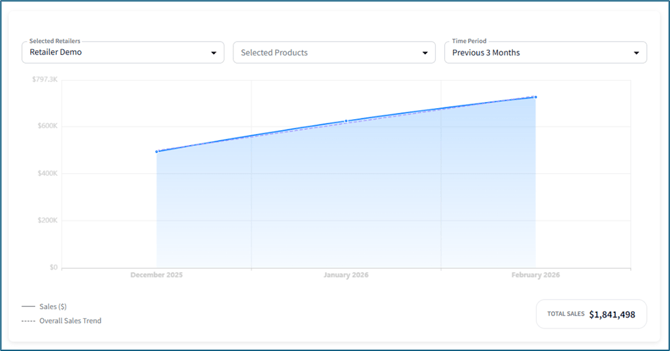
After selecting a filter, the line graph on the right updates to show that data. Hover over the graph to view the sales trends for the selected filter(s):
Trends By Period
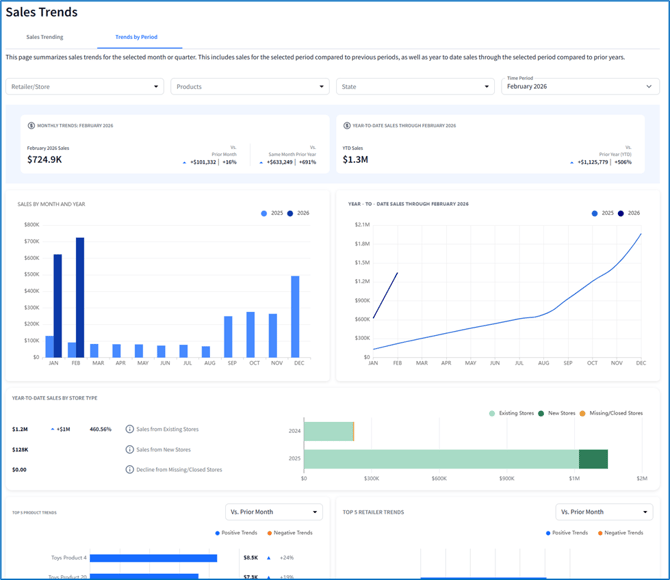
The Trends by Period section helps you compare sales for a single month or quarter against the previous period and the same period the year prior.
- How did we perform this period?
- How does that compare to the prior period and the same period last year?
- Who (retailers/states) and what (products) are the biggest movers?
Filtering
Above the line graph, use the dropdown filters to refine your view. Analyze sales by Retailer/Stores, Products, States, or a combination of the three. By default, the report displays the last completed period (month), which you can change using the Time Period filter:

Widget Guide
|
Widget |
Description |
Use Case |
|
Monthly Trends Summary |
|
Confirm if sales have improved or declined. |
|
Year‑to‑Date (YTD) Sales |
|
Monitor whether you are meeting your margins each year. |
|
Sales By Month/Quarter and Year (Bar Chart) |
|
Are sales trends seasonal? |
|
Year‑to‑Date (YTD) Sales (Line Chart)
|
|
How have my sales trended throughout the year? |
|
Year-to-Date Sales by Store Type |
|
What influenced my sales dollars for the year, stores opening or closing? |
|
Top 5 Product Trends |
|
Decide which products need attention, and whether product assortment needs to be adjusted. |
|
Top 5 Retailer Trends |
|
Focus on which retailers drive the largest gains or losses. |
|
Sales Trends by Location |
Sale changes by State or Store for the chosen period:
|
|