
Within Settings > Users, review, add, or edit your company’s user accounts. Details shown in the table include a user’s name, email, the last time they were active in the portal (Last Active), when their account was created (Date Joined), and their user status:
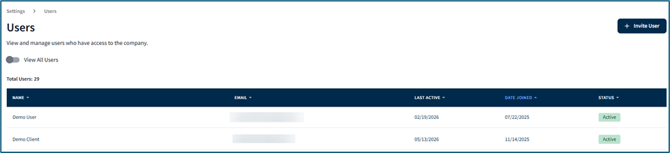
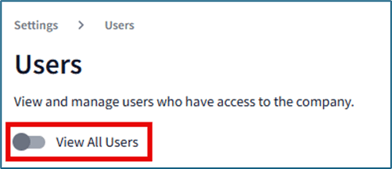
By default, the user list displays only Active users. To include Inactive users, toggle on View All User:
Adding a New User
To add a new user:
- Click the Invite User button in the top right corner of the page:
- Add the user’s information: first name, last name, contact number, email address, job title (this can be edited later if you are unsure), and user type:
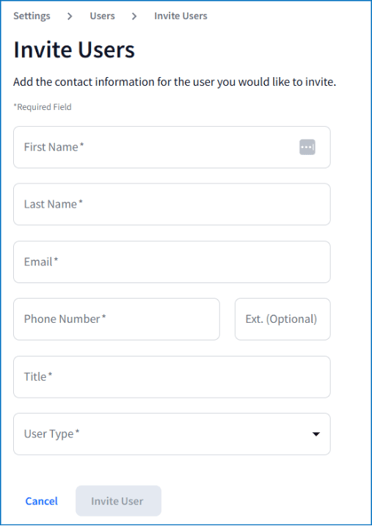
💡 There is currently only one user type to choose from, Super Admin.
-
Click Invite User.
The invited user will receive an email from Fintech to register for the SBT Portal.
Managing Account Access
⚠️ To edit or delete users, contact Client Services: service@sbt.fintech.com
To change whether a user can access a vendor account:
- Hover over a user row and click Deactivate Client Access:

- Click Yes, Change Status:
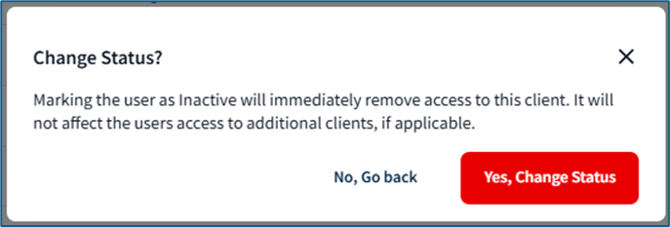
Changes will take effect immediately.