
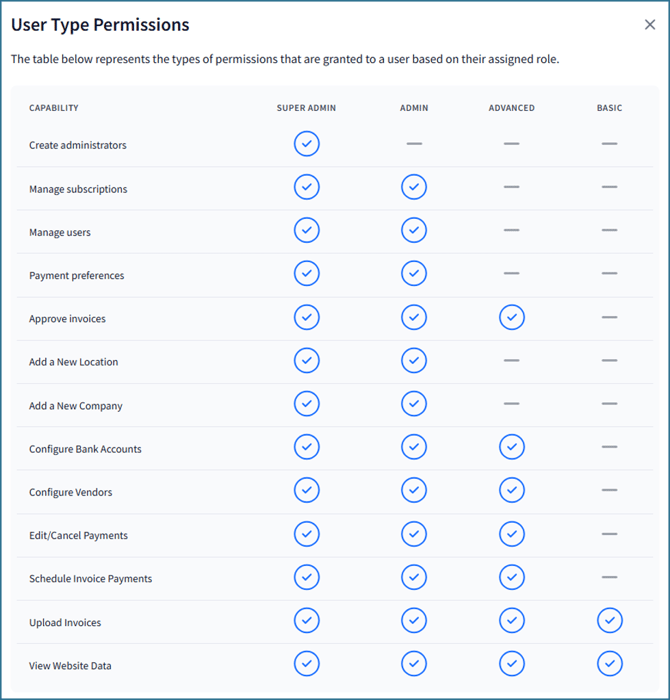
For security, anyone with Super Admin or Admin access should have a clear understanding of the capabilities each User Type provides. The 4 types available include the following permissions:
-
Super Admin
- Invite users and set any type(ie, Admins and Super Admins)
- Activate/deactivate users
- Manage subscription level
- Configure bank accounts & distributors
- Admin
- Invite users and manage Advanced and Basic types
- Manage subscriptions
- Configure bank accounts & distributors
- Advanced
- Manage subscriptions
- Configure bank accounts & distributors
- Basic
- Can view website data only
To view the user matrix:
- Go to Settings > Users.
- Click Invite User in the top right corner of the page, then select the i icon next to User Type:

Adding Users
💡 You must have Admin privileges at minimum to add and delete users.
To add a new user:
- Go to Settings > Users.
- Click Invite User in the top right corner of the page.
- Add the user’s information:
- First name, last name, email address and user type are required.
- Phone and title are optional fields.
- Click Invite.
Editing Users
Admins and Super Admins can make changes to a user. Please note the following restrictions on making updates:
- Super Admins can update the profile, type, and active status for admins, as well as Basic and Advanced users.
- Admins can update the profile, type, and active status for Basic and Advanced users.
- Super Admins can change the profile, type, and active status for a colleague who is a Super Admin.
- Super Admins CANNOT deactivate themselves. Another Super Admin must do this on their behalf.
- Email addresses CANNOT be updated by any type. Contact Client Services to update an email address.
- Passwords must be reset by the user (admins cannot reset someone else’s password). This can be done by hitting Forgot Password on portal’s log-in screen or in the portal by clicking on Profile (your initials in the upper right corner of the page).
To update a user’s info, status, or type:
- Go to Settings > Users.
- Within the table, click the pencil icon at the end of the row to open the editing page.
💡 Users can be deactivated by a Super Admin but will still be listed as a user. Deactivated users will not be able to access the website or receive emails from the portal.
💡 A deactivated user can be re-activated. Once reactivated, the user can log into the portal again and receive alerts.